HEIC to PDF
Turn iPhone photos into a neat A4 PDF with this HEIC to PDF converter, no upload needed.
Processed on your device, not uploaded.
How to Convert HEIC to PDF
- 1
Select HEIC Photos
HEIC or HEIF photos from iPhone, iPad, or a computer.
- 2
Arrange Your Photos
Drag to reorder, orientation is detected automatically.
- 3
Set the Paper
A4 or Letter paper, or the size of each photo.
- 4
Download Photo PDF
Press Convert to PDF once every photo has been read.
HEIC to PDF Features
iPhone Photo to PDF Directly
No need to save HEIC photos as JPG first.
Many Photos, One PDF
Combine HEIC photos into one PDF, like receipts, and drag to set the order.
No Washed-Out Colors
iPhone wide-gamut colors are converted to standard screen and print colors.
GPS Location Left Out
Location data and camera details aren't saved in the resulting PDF.
Common Questions
Select HEIC photos in your iPhone or computer browser, then press Convert to PDF. Gallery photos your iPhone sends as JPG work too.
Yes, both .heif and .heic files are accepted, including from Android phones.
Yes, but only the still photo is used, and files with several photos use the main one.
HDR effects only show on screens that support them, so the PDF uses the standard version.
Yes, photos are read in your browser on Windows, Mac, iPhone, or Android and aren't sent to a server.
PDF Guides and Tips
How to Convert Documents to PDF by File Format
How to convert documents to PDF: pick the right tool for Word, Excel, PowerPoint, photos, text...
How to Make a PDF on Your Phone Without an App
Make a PDF on your phone from gallery photos, camera shots, or Word files in the browser, then find...
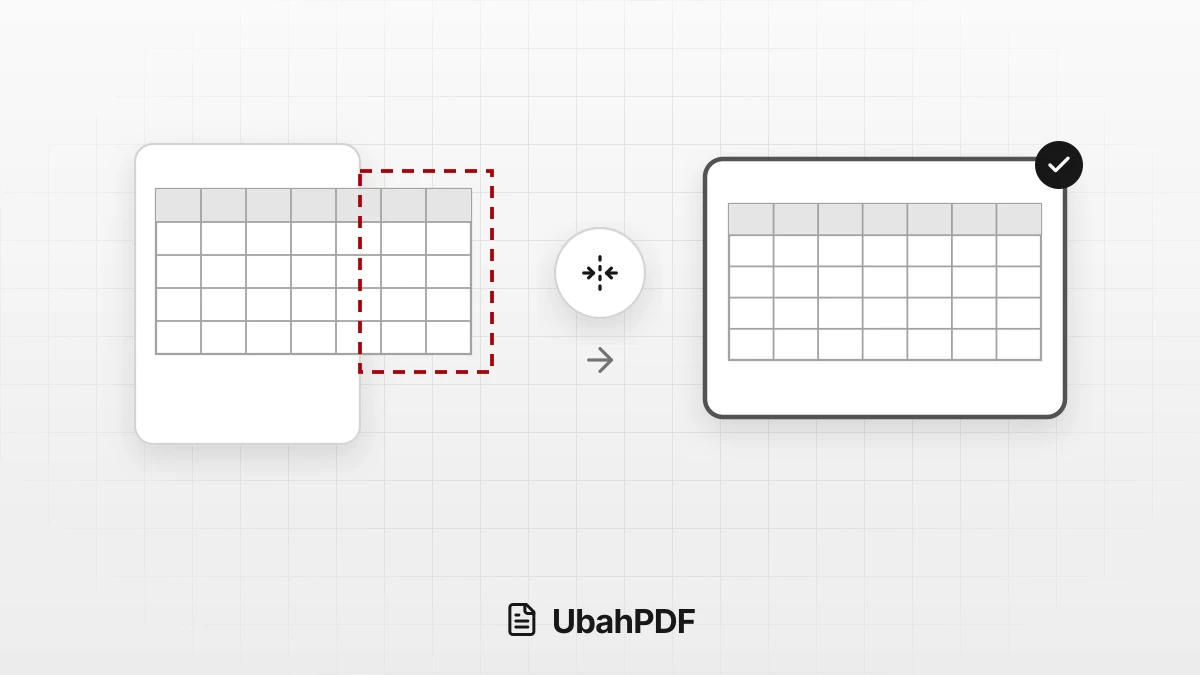
How to Convert Excel to PDF Without Cutting Off Columns
Convert Excel to PDF without cutting off columns: understand print areas, fit-to-width scaling, and...
More UbahPDF Tools
JPG to PDF
Turn JPG photos into one PDF.
PNG to PDF
Turn PNG images into one PDF.
WebP to PDF
Turn WebP into a print-ready PDF.
SVG to PDF
Save SVG logos and icons as PDF.
TIFF to PDF
Combine TIFF scans into one PDF.
Merge PDF
Join PDF files into one document.
Compress PDF
Make PDF smaller for email.
Edit PDF
Write on PDF and add images.
PDF to Word
Turn PDF into an editable DOCX file.
Split PDF
Split PDF pages into separate files.
Word to PDF
Save DOCX or DOC files as PDF.
Delete PDF Pages
Remove the pages you don't need.