SVG to PDF
Turn SVG logos, icons, and art into high-resolution PDF pages with this SVG to PDF converter, no upload.
Processed on your device, not uploaded.
How to Convert SVG to PDF
- 1
Select SVG Files
Logos, icons, or illustrations, several at once.
- 2
Set the Page Order
Drag the cards or sort file names A to Z.
- 3
Press Convert to PDF
Each SVG file becomes one PDF page.
- 4
Download the PDF
Rename it if needed, then save the PDF.
SVG to PDF Features
Pages Sized to the SVG
No margins, so logos and illustrations fill the whole page.
Same Colors and Gradients
Fills, strokes, gradients, and transparency look as they do in a browser.
Sharp at Original Size
SVG images become high-resolution pictures, so text can't be selected.
SVGs With Scripts Rejected
Event attributes and links to outside images, fonts, or stylesheets are removed.
Common Questions
Select the SVG files, set their order, then press Convert to PDF and Download PDF.
No, each SVG is saved as a sharp image, so lines may pixelate if you zoom in very far.
Fonts that aren't installed are replaced, and web fonts aren't loaded. Convert text to outlines before exporting.
Not directly, since pages match the SVG size. Adjust them afterward with Resize PDF Pages.
Yes, conversion runs in your browser, so unreleased designs aren't sent to a server.
PDF Guides and Tips
How to Convert Documents to PDF by File Format
How to convert documents to PDF: pick the right tool for Word, Excel, PowerPoint, photos, text...
How to Make a PDF on Your Phone Without an App
Make a PDF on your phone from gallery photos, camera shots, or Word files in the browser, then find...
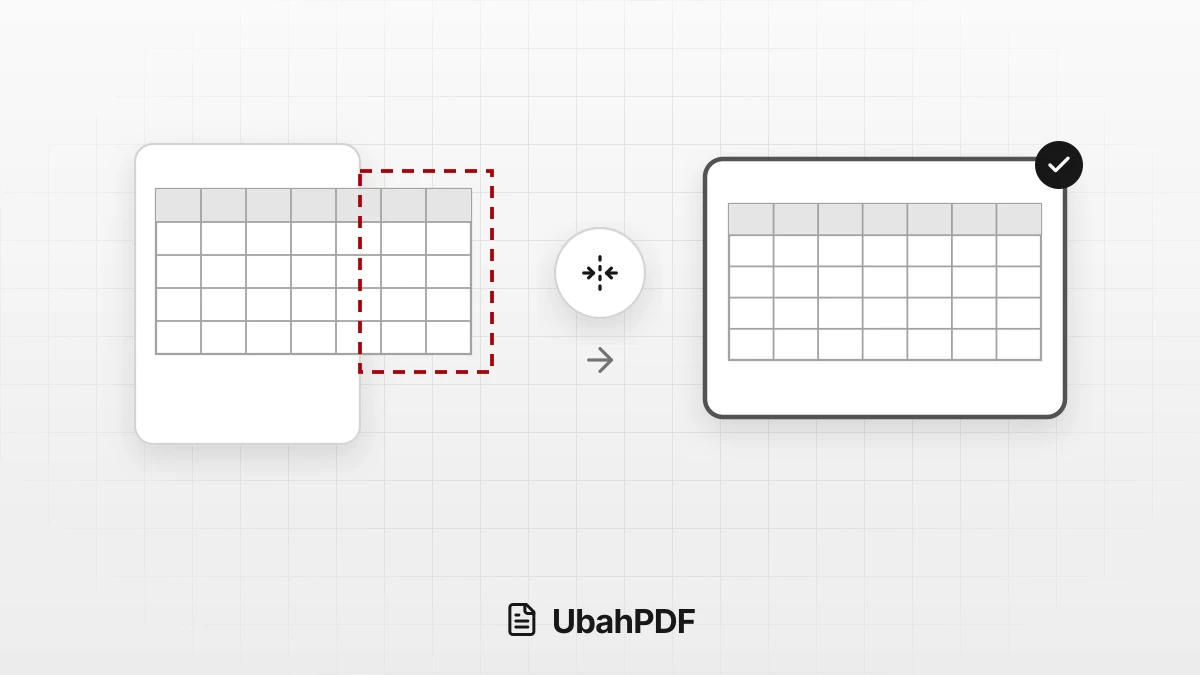
How to Convert Excel to PDF Without Cutting Off Columns
Convert Excel to PDF without cutting off columns: understand print areas, fit-to-width scaling, and...
More UbahPDF Tools
TIFF to PDF
Combine TIFF scans into one PDF.
HEIC to PDF
Turn iPhone HEIC photos into PDF.
JPG to PDF
Turn JPG photos into one PDF.
PNG to PDF
Turn PNG images into one PDF.
WebP to PDF
Turn WebP into a print-ready PDF.
Merge PDF
Join PDF files into one document.
Compress PDF
Make PDF smaller for email.
Edit PDF
Write on PDF and add images.
PDF to Word
Turn PDF into an editable DOCX file.
Split PDF
Split PDF pages into separate files.
Word to PDF
Save DOCX or DOC files as PDF.
Delete PDF Pages
Remove the pages you don't need.