How to Convert Excel to PDF Without Cutting Off Columns
Convert Excel to PDF without cutting off columns: understand print areas, fit-to-width scaling, and landscape so every column fits on the page.

Try it right in the browser, with no upload.
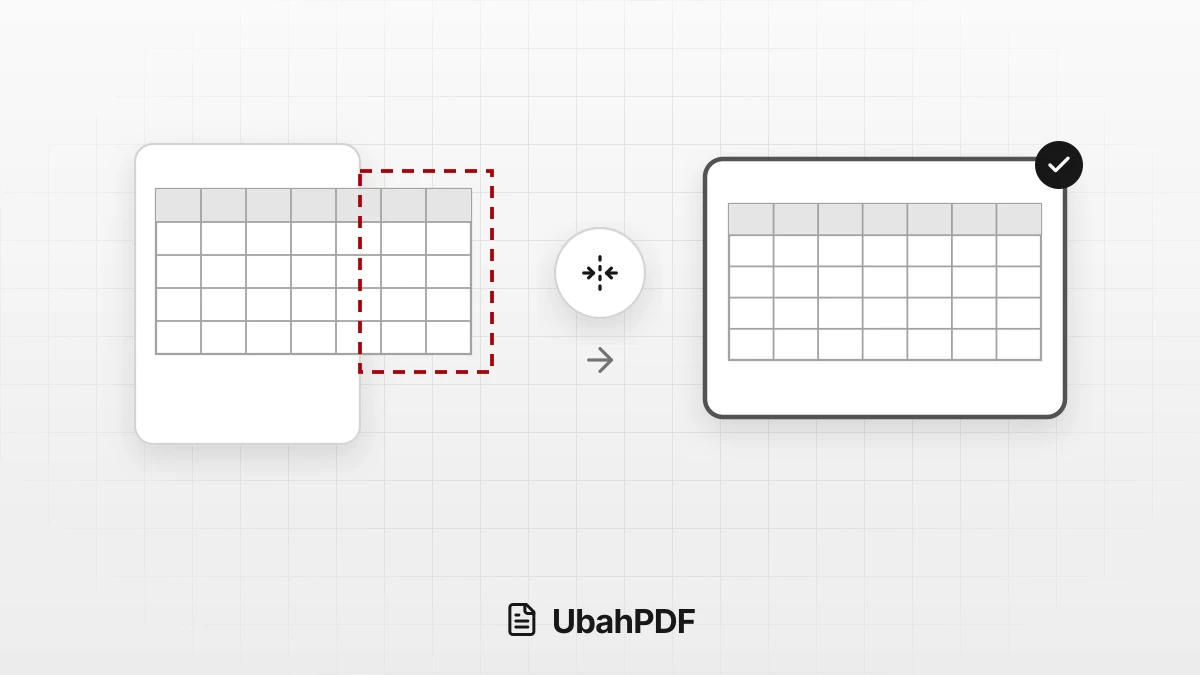
Excel to PDFTo keep an Excel table from being cut off in a PDF, every column has to fit across the width of the paper.
In UbahPDF's Excel to PDF, a sheet without a print area is automatically scaled so all columns fit the page width, while long tables continue onto the next pages.
If the result is still cut off, the sheet usually has a saved print area that does not cover every column, or a scaling setting in the file splits the table across several pages.
Fix that setting in Excel, save the file, and convert it again.
Contents Show Hide
Why Excel Tables Get Cut Off in a PDF
An Excel worksheet has no page edges, but a PDF always uses a fixed paper size, such as A4 or Letter.
When a table is wider than the paper, the columns that do not fit are moved to another page or left out of the print. In the PDF, the table looks as if it was cut in half.
Three causes come up most often:
- An old print area. If the print area was set before new columns were added, those columns do not make it into the PDF.
- Scaling that splits pages. A setting such as "fit to 2 pages wide" deliberately spreads the table across two pages side by side.
- A table too wide for portrait paper. Dozens of columns can still be fitted, but the text becomes very small.
How UbahPDF Handles Page Width
Excel to PDF has no orientation or scaling buttons. Page settings are read from the Excel file, following these rules:
- Sheets without a print area are scaled so every column fits the page width, and long tables continue onto the next pages.
- Sheets with a print area are printed using the area and page settings saved in the file, without automatic scaling.
- Fit-to-page settings already turned on in the file are kept, including the number of pages wide and tall.
- Orientation follows the file. A sheet saved as landscape in Excel stays landscape in the PDF.
- Paper size follows the file. An XLSX file with no paper size set uses A4.
- An older XLS file that never had a paper size set may come out on Letter, so save it as XLSX if you need A4.
Before converting, you can also tick the sheets that should go into the PDF.
Hidden sheets are left out unless you tick them, and all selected sheets are combined into one PDF.
How to Set Up the Excel File So Nothing Is Cut Off
If the result is still cut off, open the file in Microsoft Excel on a computer and use the Page Layout tab:
- Check the print area. Choose Print Area and then Clear Print Area so UbahPDF fits the whole table to the page width.
- Change the orientation. Choose Orientation and then Landscape so wide tables do not need to shrink as much.
- Set the scaling. In the Scale to Fit group, set Width to 1 page and Height to Automatic.
- Save the file, then convert it to PDF again.
The same steps apply to ODS files from LibreOffice Calc converted with ODS to PDF.
Set the print area, orientation, and scaling in Calc, save the file, and convert it again. An ODS file with no paper size set prints on Letter, so set A4 in Calc if you need it.
When the Text Gets Too Small
A table with dozens of columns will fit the page width, but the text can be hard to read once printed. A few ways to deal with it:
- Use landscape paper as described above, since landscape is wider than portrait.
- Print only the columns that matter. Select the columns the recipient needs, then choose Set Print Area.
- Split the table across sheets. Move groups of columns to separate sheets, then tick all of them when you convert to PDF.
Check the Result Before Sending
Open the converted PDF and check that the last column is visible, the text is still readable, and all the sheets you need are included.
Formulas appear as cell values based on what is saved in the file, so open and save the file in Excel first if numbers from other workbooks need updating.
The size limit for Excel files is 32 MB on phones and 64 MB on computers.
The first conversion also waits for a conversion engine of about 60 MB to download, so use a stable connection.
Try it right in the browser, with no upload.
Excel to PDF