Why the Layout Breaks When Converting PDF to Word
Why does the layout break when converting PDF to Word? Learn the causes, from columns to fonts, and how to tidy the result in Word.

Try it right in the browser, with no upload.
PDF to WordThe layout changes when you convert a PDF to Word because the two formats store layout in different ways.
A PDF records the position of every character on the page, while Word arranges text as flowing paragraphs.
During conversion, the content of the PDF is rebuilt as editable headings, paragraphs, lists, tables, and images, so the result is close to the original but not an exact copy.
The parts that shift most often are multiple columns, text boxes, image positions, alignment, and headers and footers.
Contents Show Hide
PDF and Word Store Layout Differently
PDF was designed to look the same on every device.
Each character, line, and image sits at fixed coordinates, with no record that several lines form one paragraph or one table.
Word works the other way around. A Word document is made of paragraphs, heading styles, lists, and tables that flow from page to page.
When you add a sentence, the text below it moves down.
That is why PDF to Word is always a guess: nearby lines become paragraphs, larger text becomes a heading, and aligned text becomes a table.
The more complex the PDF design, the more likely its arrangement changes.
What Changes Most Often
Here is how PDF to Word in UbahPDF behaves, so you know what to check in the result:
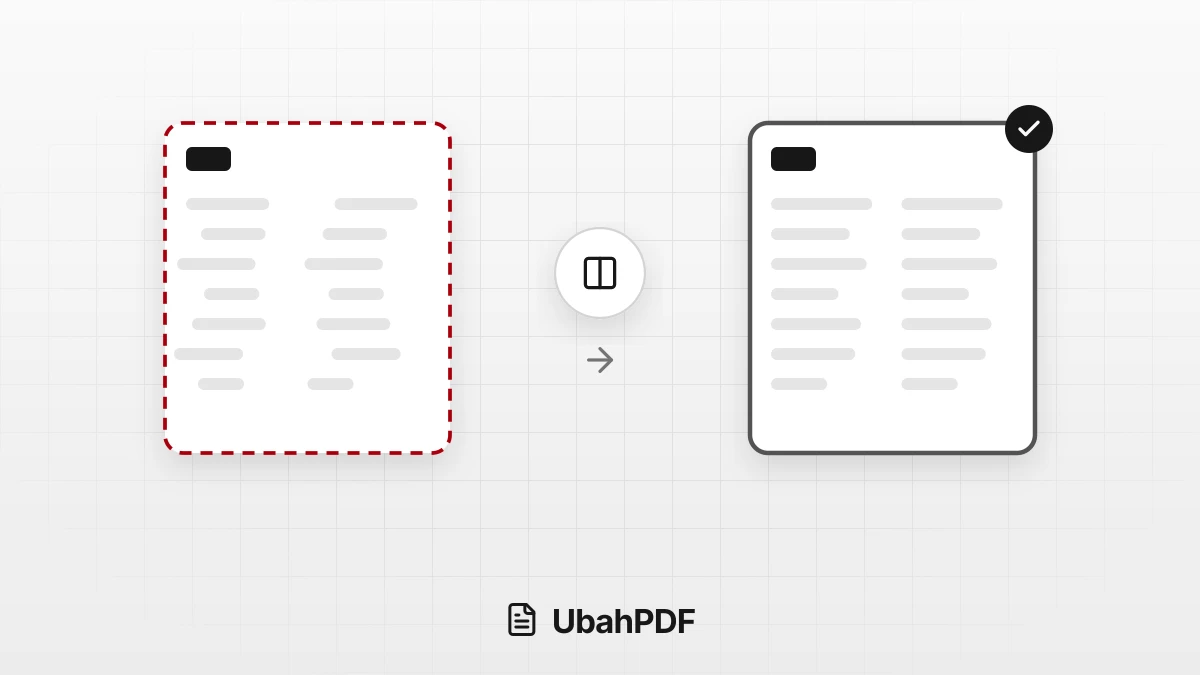
- Two columns become one flow. The left column is read first, except on Arabic pages, so the order is correct but the content becomes one column.
- Text boxes and free positions disappear. Text that sat in a side box or floated in the middle of the page is placed into the normal paragraph flow.
- Alignment and indents are not carried over. Paragraphs become left-aligned without indents, except Arabic paragraphs, which are right-aligned.
- Images are placed after the page text. Photos and pictures are inserted, centered, after the text of the page where they first appear.
- Vector graphics are not carried over. Vector charts and diagrams do not reach Word, and transparent images may be left out.
- Headers, footers, and page numbers are removed. Text that repeats at the top or bottom of pages is dropped so it does not land mid-paragraph.
- Fonts switch to standard styles. Body text uses Calibri and headings use Heading styles, with font sizes that follow the PDF.
- Bold and italic stay in paragraphs and lists. Table cells lose both, and the original typeface and text color are not carried over.
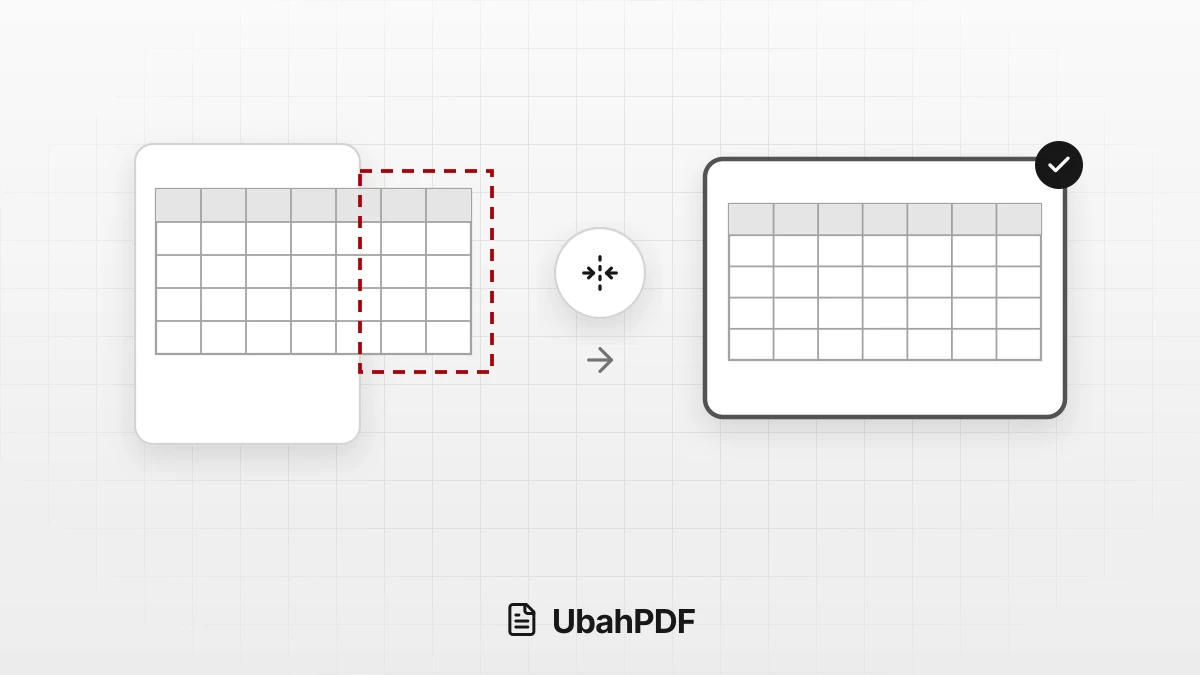
- Bordered tables keep their structure. Column widths and merged cells are read from the cell lines, so they carry over to Word.
- Borderless tables may become paragraphs. Their columns get equal widths, and merged cells or long text can turn them into paragraphs.
- Page size follows the first page. Every PDF page starts on a new page, and a landscape page in a portrait document needs adjusting.
Scanned PDFs Cannot Be Edited Directly
A scanned PDF or a photo of a document only contains images of pages, with no text.
If no text can be read at all, UbahPDF does not create a Word document and shows the note "This PDF has no readable text." with a link to OCR PDF.
Run OCR PDF first so the text is recognized, then convert that result to Word.
A mixed PDF converted directly still becomes a Word document, but its scanned pages contain no editable text.
Run OCR PDF on such a PDF too: pages that already have text are skipped, and only the scanned pages are recognized.
How to Tidy Up a PDF to Word Result
This order is usually the fastest way to clean up a converted document:
- Check the headings. Chapter titles already use Heading styles, so you can insert an automatic table of contents in Word right away.
- Set the alignment. Select titles, dates, or signature blocks that should be centered or right-aligned and adjust them.
- Restore columns if needed. Select the text that used to be in two columns and use Word's column feature.
- Move the images. Drag each image to the right spot and choose how text wraps around it.
- Adjust borderless tables. Change column widths to fit the content and merge cells that were merged in the original.
- Add headers, footers, and page numbers to match the original document.
- Check before printing. Compare the page count and the order of the content with the original PDF.
When the Layout Must Stay Exactly the Same
If you only need to change a few words and the page design must not move, converting to Word is not the best route.
Use Edit PDF to add text directly on top of the page. To replace a word, cover the old text with Whiteout and type the new text on top.
The original text is still stored in the file, so this method is not suitable for removing confidential information.
If the document was originally created in Word, the cleanest option is to ask its author for the source Word file.
The source file keeps the styles, columns, and image positions that are no longer recorded in the PDF.
Try it right in the browser, with no upload.
PDF to Word