PDF to Excel
Extract PDF tables to Excel as XLSX sheets with numbers ready to sum, with no upload.
Processed on your device, not uploaded.
How to Convert PDF to Excel
- 1
Select Your PDF File
Pick a PDF with tables, such as a report or price list.
- 2
Choose the Table Pages
Keep all pages, or type the range that holds the tables.
- 3
Press Convert to Excel
Approve any yellow cells if a review appears.
- 4
Download the XLSX File
Open it in Excel, Google Sheets, or WPS Spreadsheets.
PDF to Excel Features
One Sheet per Table
Extract tables from PDF to Excel, each on a sheet named after its page.
Numbers You Can Sum
Values like 1,250,000 become numbers, while IDs and phone numbers stay text.
Unclear Cells Reviewed First
Values like 1,500 and merged headers are marked yellow for your approval.
Formulas Never Run
Cells starting with =, +, or @ are saved as plain text, not formulas.
Common Questions
Select your PDF, choose the table pages, and press Convert to Excel. Each table lands on its own sheet.
Yellow cells hold values with an unclear meaning, like 1,500 or a merged header. Check and fix them if needed.
Not directly, because a scanned PDF only holds images. Run OCR PDF first, then convert the result to Excel.
Usually because the PDF table has no borders, so tightly packed cells may read as paragraphs. Tables saved as images aren't read.
Yes, the conversion runs in your phone or computer browser, and the file is never sent to a server.
PDF Guides and Tips
What Is a PDF? Meaning, Uses, and How to Use One
Learn what PDF means, why it is the go-to format for official documents, how it differs from Word,...
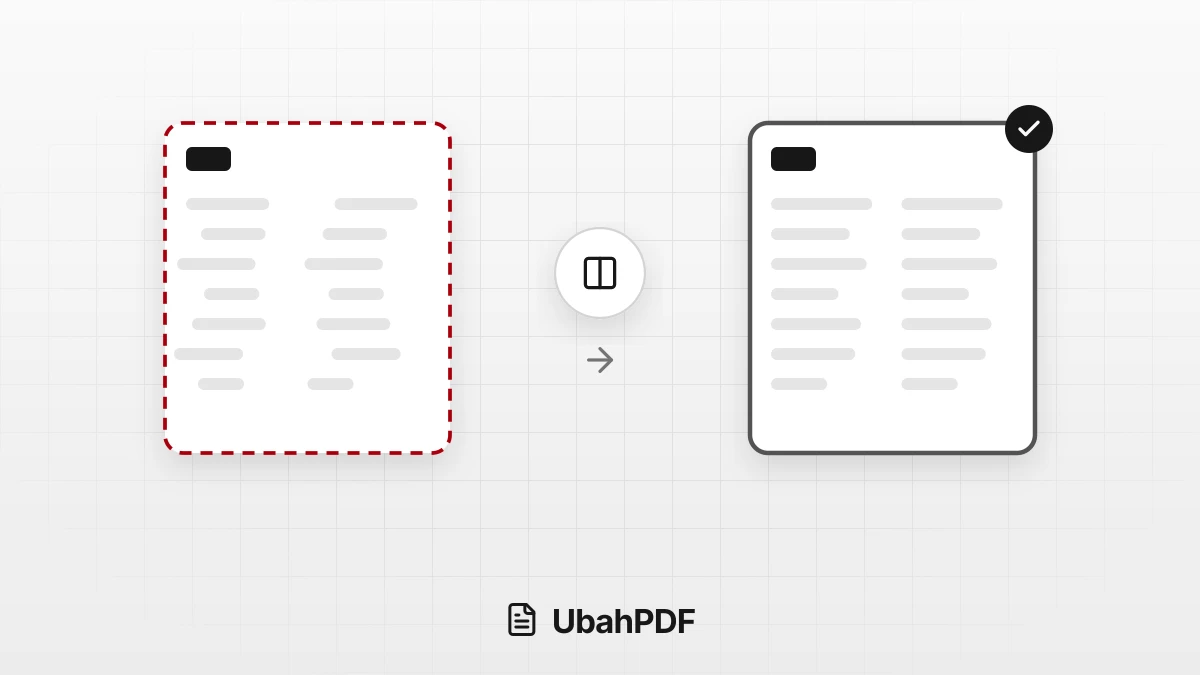
Why the Layout Breaks When Converting PDF to Word
Why does the layout break when converting PDF to Word? Learn the causes, from columns to fonts, and...
How to Convert Documents to PDF by File Format
How to convert documents to PDF: pick the right tool for Word, Excel, PowerPoint, photos, text...
More UbahPDF Tools
PDF to PowerPoint
Make each PDF page a slide.
PDF to Text
Extract PDF text into a .txt file.
PDF to HTML
Turn a PDF into a web page.
PDF to Markdown
Copy PDF text with its headings.
PDF to EPUB
Turn a PDF into an EPUB e-book.
PDF to Word
Turn PDF into an editable DOCX file.
Merge PDF
Join PDF files into one document.
Compress PDF
Make PDF smaller for email.
Edit PDF
Write on PDF and add images.
Split PDF
Split PDF pages into separate files.
Word to PDF
Save DOCX or DOC files as PDF.
Delete PDF Pages
Remove the pages you don't need.