ODS to PDF
Pick LibreOffice Calc sheets to print as a PDF that keeps print areas or fits the page width, with no upload.
Processed on your device, not uploaded.
How to Convert ODS to PDF
- 1
Select an ODS File
An ODS spreadsheet or OTS template from Calc.
- 2
Check the Sheets
Hidden and empty sheets start unchecked.
- 3
Press Convert to PDF
The converter downloads once, on first use.
- 4
Download the PDF
Check each sheet's page breaks before sending.
ODS to PDF Features
Only the Calc Sheets You Pick
Check report sheets, skip raw data, and combine them in one PDF.
Calc Print Areas Followed
Sheets with a print area print only that area, as set in Calc.
Columns Fit the Paper
Without a print area, sheets shrink until every column fits the page width.
No LibreOffice Needed
Convert any OpenDocument spreadsheet to PDF right in your browser.
Common Questions
Calibri and Arial get same-width fonts, other fonts similar ones. Chinese, Japanese, Korean, Thai, Devanagari, and Javanese aren't shown yet.
Sheets without a print area fit the page width. For very wide tables, set a print area or landscape in Calc.
Yes, the PDF shows calculated values, but data from external links isn't refreshed.
Not yet, unlock it in LibreOffice Calc, save it again, then select the file once more.
Yes, files are converted in your browser, up to 32 MB on phones and 64 MB on computers.
PDF Guides and Tips
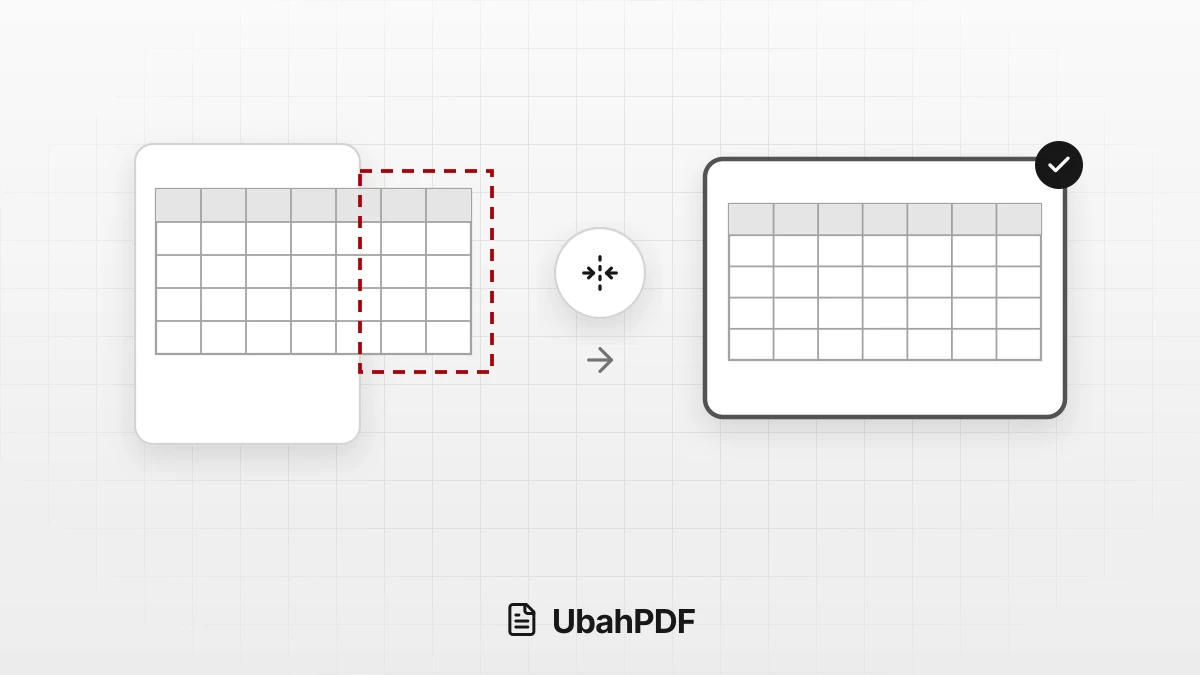
How to Convert Excel to PDF Without Cutting Off Columns
Convert Excel to PDF without cutting off columns: understand print areas, fit-to-width scaling, and...
How to Convert Documents to PDF by File Format
How to convert documents to PDF: pick the right tool for Word, Excel, PowerPoint, photos, text...
How to Make a Job Application PDF on Your Phone
Turn your cover letter, resume, ID, and certificates into PDFs on your phone, merge them in order,...
More UbahPDF Tools
ODP to PDF
Save Impress slides as PDF.
Word to PDF
Save DOCX or DOC files as PDF.
Excel to PDF
Save chosen Excel sheets as PDF.
PowerPoint to PDF
Make each slide one PDF page.
ODT to PDF
Save Writer documents as PDF.
Merge PDF
Join PDF files into one document.
Compress PDF
Make PDF smaller for email.
Edit PDF
Write on PDF and add images.
PDF to Word
Turn PDF into an editable DOCX file.
Split PDF
Split PDF pages into separate files.
Delete PDF Pages
Remove the pages you don't need.
JPG to PDF
Turn JPG photos into one PDF.