How to Rename a PDF File on Android and iPhone
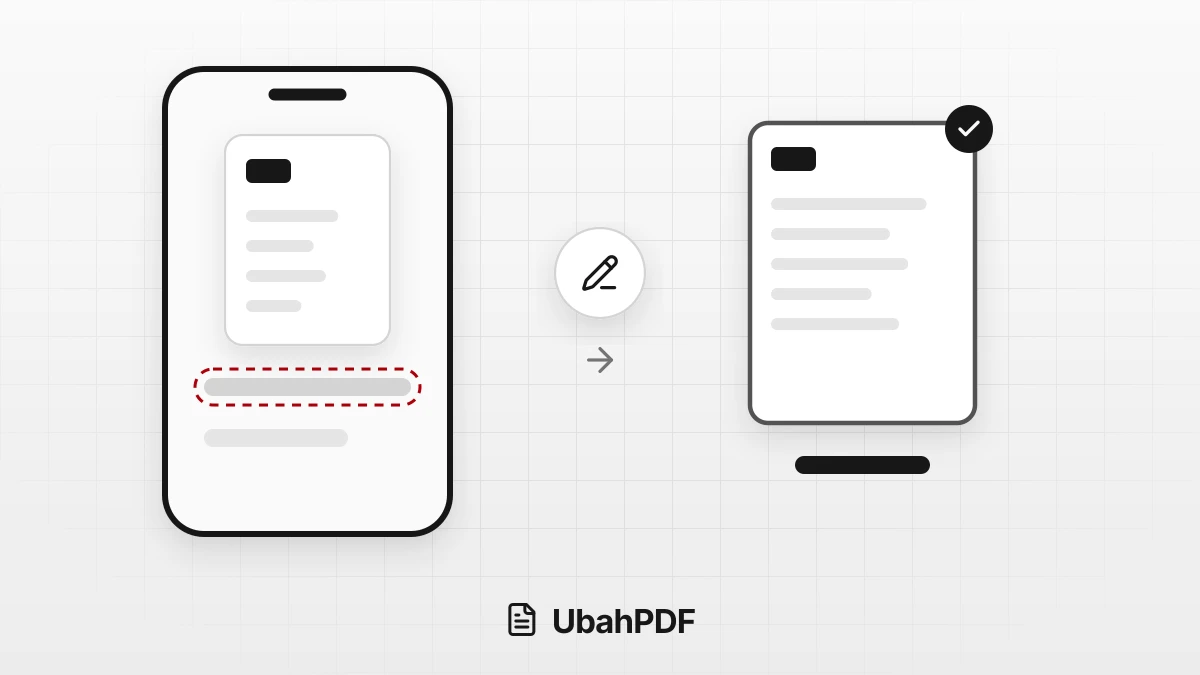
Learn how to rename a PDF file on your phone with the Android or iPhone file manager, or name it before you download a result from UbahPDF.

Try it right in the browser, with no upload.
Edit PDF MetadataTo rename a PDF file on your phone, open your file manager, press and hold the PDF, choose Rename, type the new name, and save it.
The steps are almost the same on Android and iPhone; only the menu location differs a little.
If you create or edit the PDF with UbahPDF, you can also type a name in the File name field before downloading, so you usually do not have to rename it again.
Contents Show Hide
How to Rename a PDF File on Android
Android phones do not all share the same file manager, but the flow is nearly always the same:
- Open your file manager, for example the Files app that came with your phone or My Files on a Samsung phone.
- Go to the folder where the PDF is saved. Files downloaded from a browser usually sit in the Download folder.
- Press and hold the PDF you want to rename, or press the three-dot icon next to the file name.
- Choose Rename. On some phones this option is inside a More menu.
- Delete the old name, type the new one, and press OK or Save.
If the .pdf extension is visible while you type, leave it in place.
Without it, your phone may no longer recognize the file as a PDF and may not offer a PDF reader when you open it.
How to Rename a PDF File on iPhone
On iPhone, documents you download in Safari are managed by the Files app.
- Open the Files app.
- Go to the PDF's location, for example the Downloads folder in iCloud Drive or On My iPhone.
- Touch and hold the PDF until a menu appears.
- Choose Rename, type the new name, and press Done on the keyboard.
The new name is used right away when you attach the file to an email, send it in a chat app, or upload it to a form.
If you are not sure where your downloads end up, our guide to making a PDF on your phone explains the download locations on Android and iPhone.
Naming the File Before You Download from UbahPDF
Every UbahPDF tool shows a File name field on the result card once processing is done.
The field already holds a suggested name that starts with ubahpdf_, followed by the original file name and a tool label.
For example, in Merge PDF the suggestion follows the first file you selected, such as ubahpdf_report_merged.
A few things to know about this field:
- The extension is added for you. An extension such as
.pdf,.docx, or.zipappears next to the field, so you only type the name. - The
ubahpdf_prefix is always kept. If the prefix is not allowed, for example by a school's naming format, rename the file after downloading. - Avoid dots in the middle of the name.
report.v2is saved asubahpdf_report.pdf. Use a hyphen instead, such asreport-v2. - An empty field uses the default name. If you clear the field, the file gets the tool's default name, such as
ubahpdf_merged.pdf.
The File Name Is Not the PDF Title
Sometimes you rename a file, but when you open it, the top of the screen still shows an old title like Document1.
That happens because a PDF stores a document title inside the file, separate from the file name.
Many browsers and PDF readers show this title instead of the file name.
Renaming the file does not change that title, and a merged PDF takes its title from the first file.
To change it, open Edit PDF Metadata, select the file, and type a new title in the Title field in Edit Fields mode.
Press Update PDF Metadata, and then press Download PDF. The page content, page count, and page size stay the same.
Tips for Clear PDF File Names
A clear name helps you find the document later and tells the recipient what is inside:
- Describe the document and its owner. Combine the document type, a name, and the year if needed, such as
resume-alex-morgan-2026. - Skip special characters. Windows does not allow
/ \ : * ? " < > |in file names, so such a file can cause trouble on a laptop. - Add a number if you plan to merge files, such as
01-cover-letterand02-resume. Our article on merged PDF files in the wrong order explains why. - Do not change the extension to change the format. A
.pdfrenamed to.docxdoes not become a Word document, so use PDF to Word.
Try it right in the browser, with no upload.
Edit PDF Metadata