Why Are My Merged PDF Files in the Wrong Order?
Find out why merged PDF files end up in the wrong order, tell file order apart from page order, and fix the sequence before you merge again.

Try it right in the browser, with no upload.
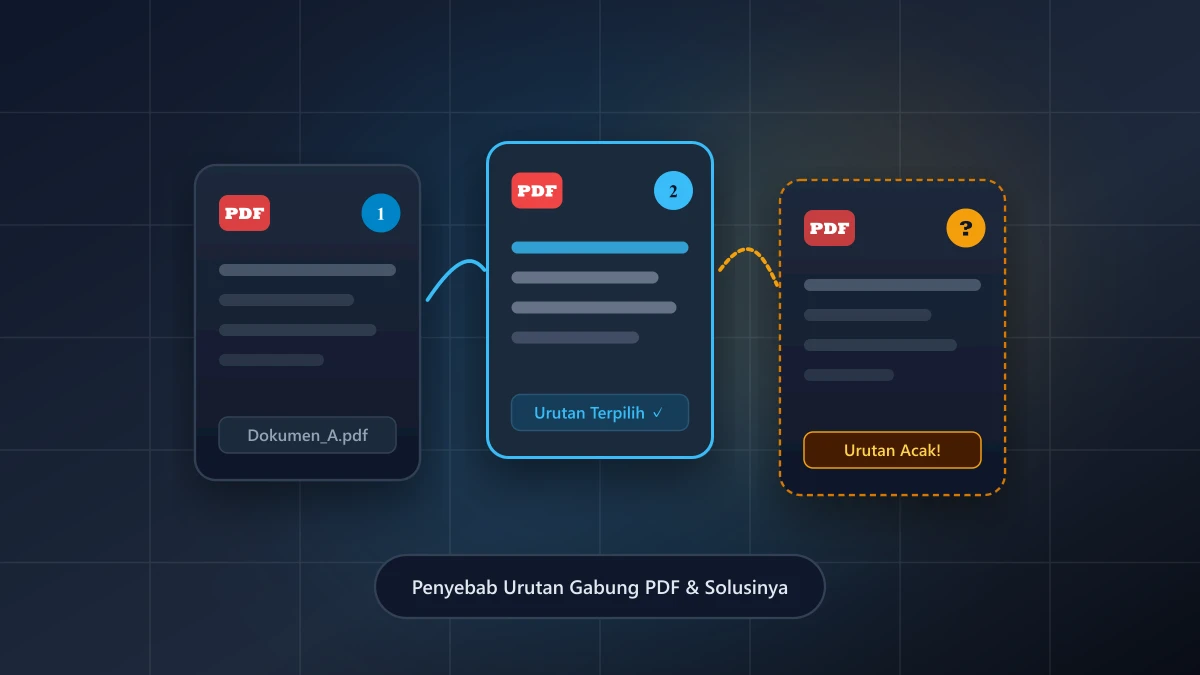
Merge PDFA merged PDF always follows the order of the file cards when you press Merge Files, not the order of the files in a folder on your phone or computer.
When the result is wrong, the file picker or file names usually gave an unexpected order, or the page order inside one file needs fixing.
Check the card order before you merge.
Contents Show Hide
Why Your PDF Files End Up Out of Order
A few common habits put the second or third document somewhere you did not expect:
- The order from the file picker: files selected together arrive in the order your device's file picker gives, which may differ from the folder order.
- Inconsistent file names: some apps sort
file10.pdfbeforefile2.pdf, because the numbers are read as text. - Files added in stages: files you add later with the Add File button always join the end of the list.
- Sorting by download date: attachments downloaded at different times can be listed by download time instead of by chapter or attachment number.
File Order or Page Order?
Before you fix anything, work out which level the problem is on.
File order decides which document goes first and which goes last. Pages from the first file are placed first, followed by pages from the second file, and so on.
Problems at this level are fixed in the file list before you merge.
Page order is about how pages are arranged inside a single document.
If one page needs to sit in the middle of another document, or a closing page needs to go, changing the file order is not enough.
Use Organize PDF Pages to move pages, or Split PDF to break a document into parts before merging them again.
Custom Range in Merge PDF only picks pages and does not reorder them. The range "5, 1-3" is still merged as pages 1, 2, 3, then 5.
How to Set the File Order in UbahPDF
You have full control over the sequence before the merge runs:
- Check the card order: in list view, the top card becomes the first document. Press the Grid view icon to see each card's position number.
- Drag and drop: hold the six-dot handle on a file card and drag it to the position you want.
- Move one step at a time: press the six-dot handle on a card, then choose Move to previous or Move to next.
- Move to either end: with more than two files, the same menu also offers Move to first and Move to last.
- Sort file names: the Sort A to Z icon reads numbers naturally, so
file2.pdfcomes beforefile10.pdf. A Z to A option is available too. - Match the covers: each file card shows the first page of the document, so you can match the content to the file name without another app.
To keep the order right every time, start file names with two digits, such as 01-cover-letter.pdf and 02-resume.pdf, then press the Sort A to Z icon.
If the Merged File Is Already Wrong
Open the merged file and check the first page of each section before you send it. If the order is off, there are two ways to fix it.
You can repeat the merge with the corrected card order, or open the merged file in Organize PDF Pages and move the misplaced pages.
When you are ready to merge again with the right order, open Merge PDF, check the order of the file cards, and download the new result.
Try it right in the browser, with no upload.
Merge PDF