Optimize PDF for Web
Turn on Fast Web View so a PDF's first page can show before the download finishes, with no upload.
Processed on your device, not uploaded.
How to Linearize a PDF
- 1
Select the PDF File
The PDF you plan to post on your website.
- 2
Optimize the File
Press Optimize for Web to restructure the file.
- 3
Check the Result
The new file size appears on the result card.
- 4
Download and Publish
Download the PDF, then post it on your website.
Optimize PDF for Web Features
First Page Shows First
Readers opening a web link see content before the download ends.
Page-by-Page Web Loading
Viewers can fetch only the pages being read from your site.
Content and Links Intact
Text, images, hyperlinks, bookmarks, and forms stay as they were.
Still a Standard PDF
The linearized file opens normally in Chrome, Safari, and other PDF apps.
Common Questions
Press Optimize for Web, download the result, and post it on your site. The first page shows before the download ends.
No, the file is only reordered and can be slightly larger. Use Compress PDF first to shrink it.
Hardly, since attachments are usually downloaded in full first; the benefit shows when opened from a link.
Not directly, unlock it first with Unlock PDF, and make linearization your last step.
Yes, the PDF is restructured in your phone or laptop browser and isn't sent to a server.
PDF Guides and Tips
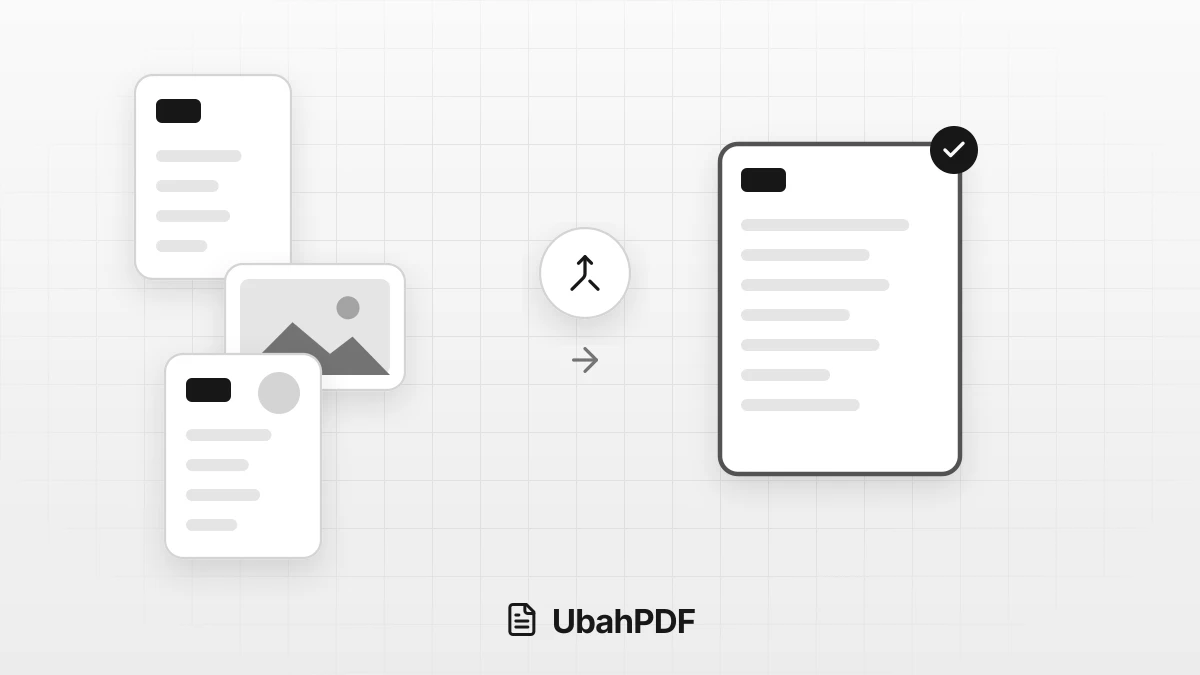
How to Make a Job Application PDF on Your Phone
Turn your cover letter, resume, ID, and certificates into PDFs on your phone, merge them in order,...
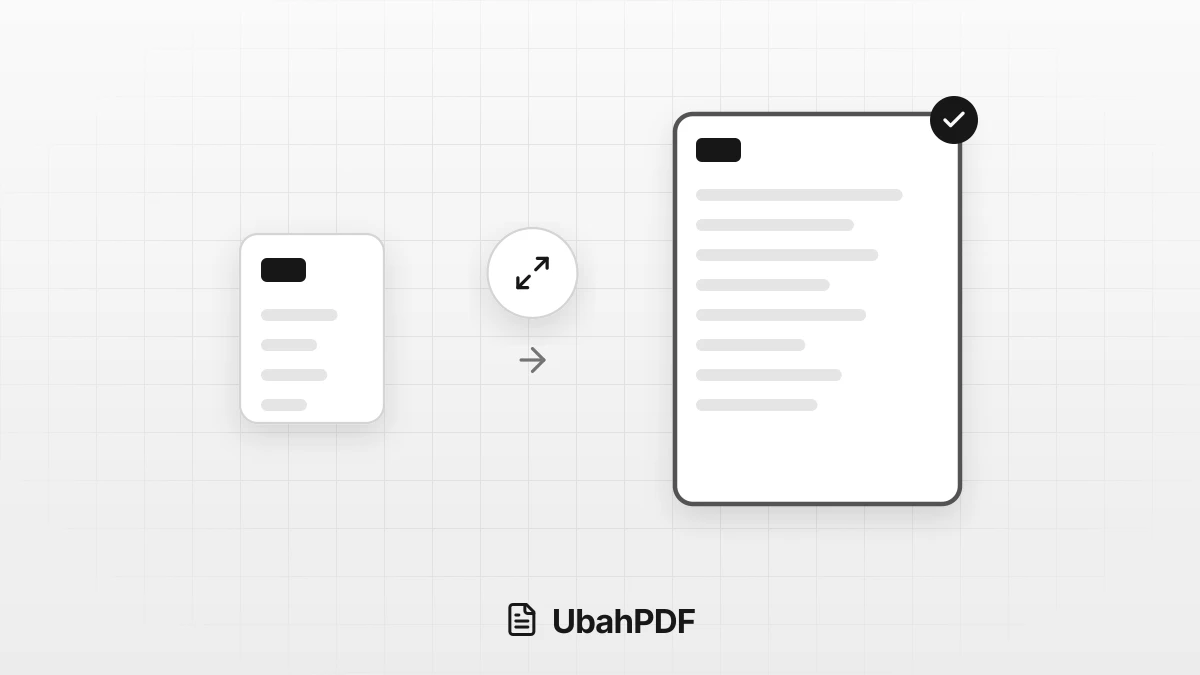
How to Make a PDF Bigger: Page Size and File Size
How to make a PDF bigger: tell page size apart from file size, then resize pages to A4 or Letter...
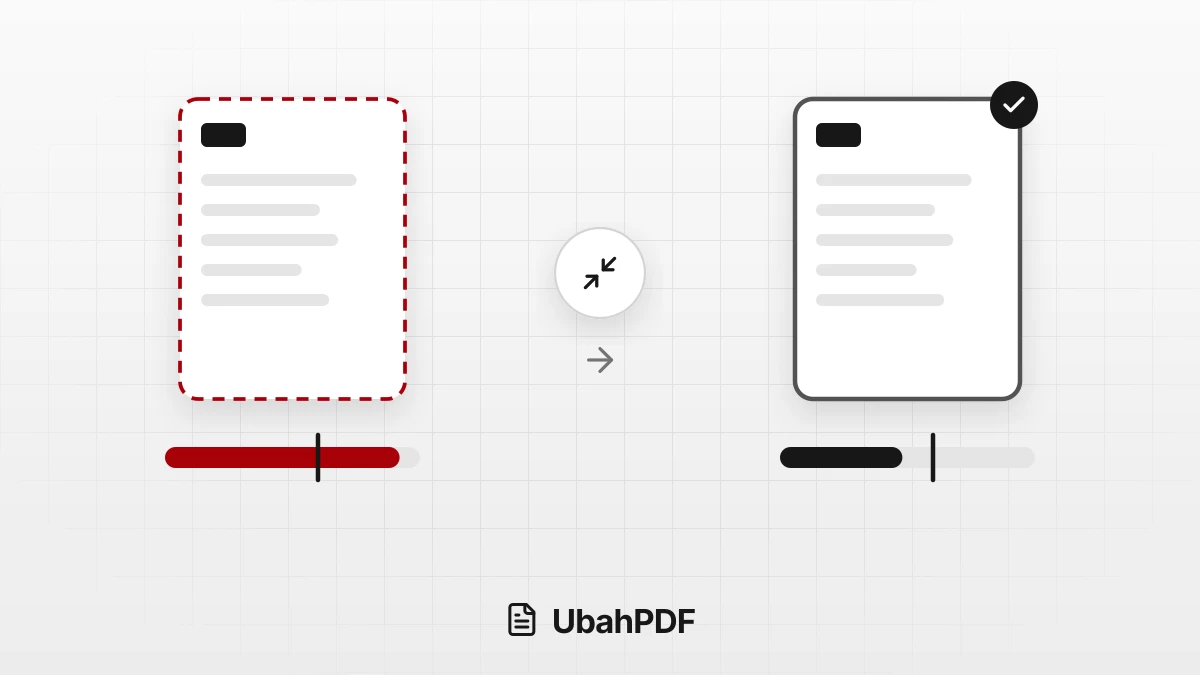
Why Is My Compressed PDF Still Over the Target Size?
Why is your compressed PDF still over the target size? See how page count, readability limits, and...
More UbahPDF Tools
Compress PDF
Make PDF smaller for email.
Merge PDF
Join PDF files into one document.
Edit PDF
Write on PDF and add images.
PDF to Word
Turn PDF into an editable DOCX file.
Split PDF
Split PDF pages into separate files.
Word to PDF
Save DOCX or DOC files as PDF.
Delete PDF Pages
Remove the pages you don't need.
JPG to PDF
Turn JPG photos into one PDF.
PDF to JPG
Turn each PDF page into a JPG.
Crop PDF
Cut PDF margins and white space.
Organize PDF Pages
Drag to change the order of pages.
PDF to Excel
Copy PDF tables into Excel sheets.