Why Does My PDF Signature Move After Saving?
Why does your PDF signature move after saving? Learn the causes, from an older download to form fields, and how to fix them.

Try it right in the browser, with no upload.
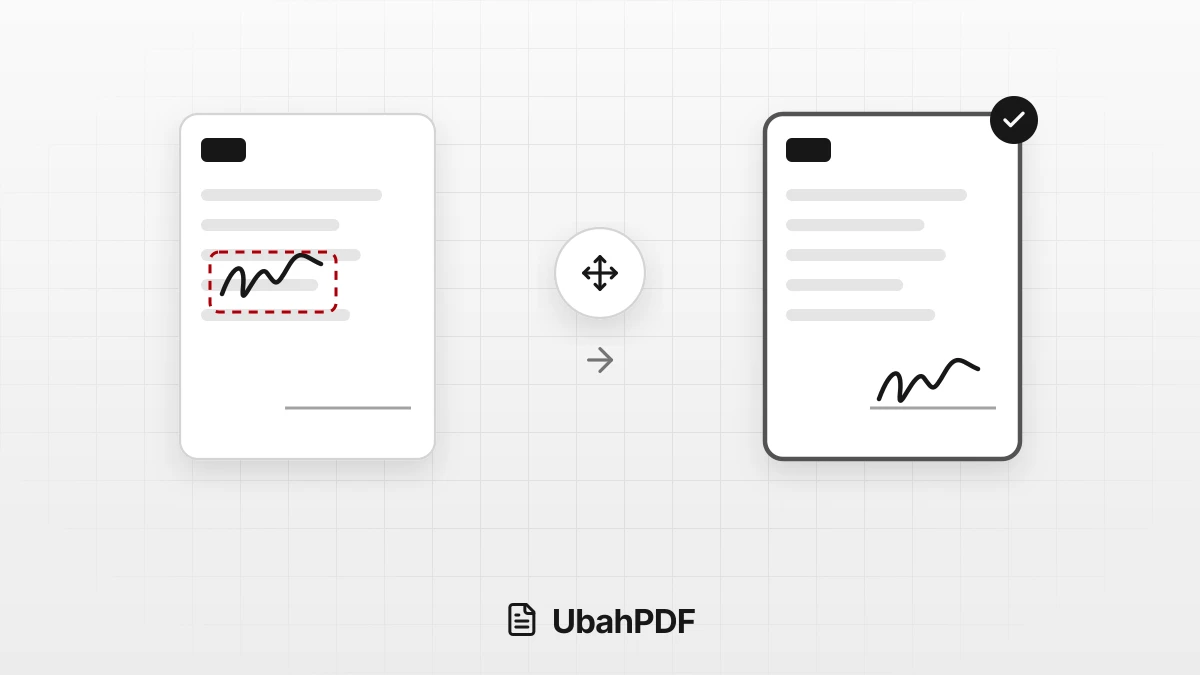
Sign PDFThe position of a signature in a file saved with UbahPDF follows its position in the preview at the moment you press Apply Signature.
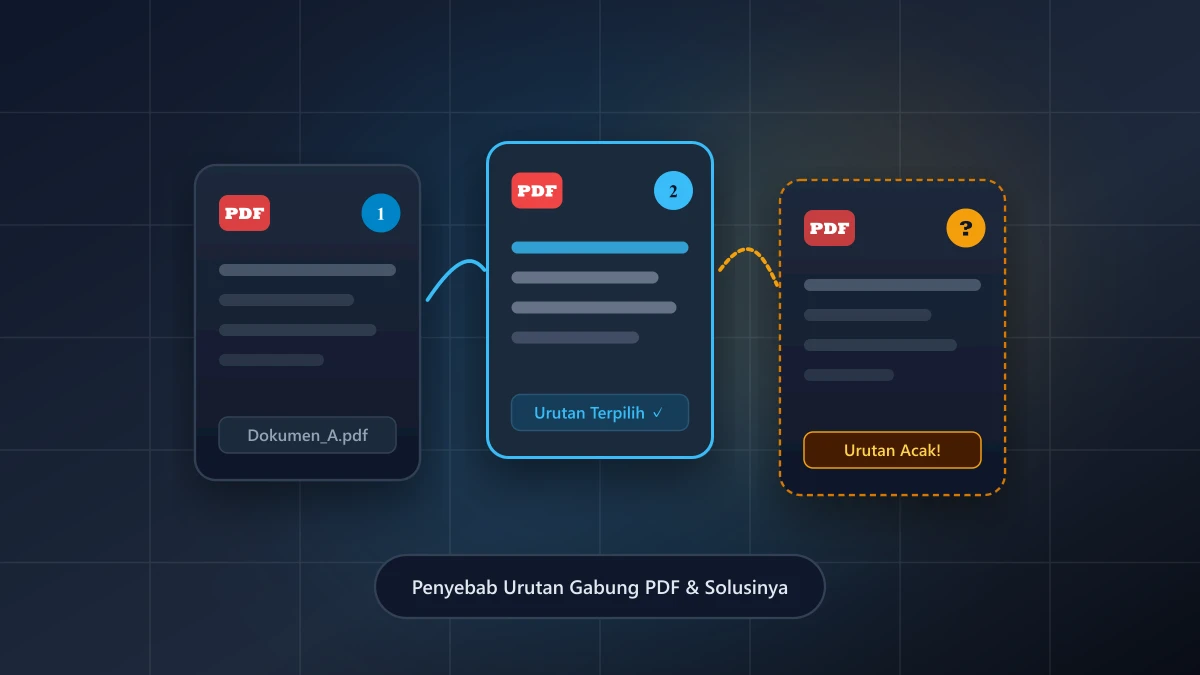
When the result looks different, the usual cause is an older download, a form field covering the signature, or typed text in a slightly different font.
Make sure you open the latest download, adjust the position if needed, then process and download again.
Contents Show Hide
How the Signature Is Saved in the PDF
In Sign PDF, you create a signature once with Create Signature, either by drawing it or by using a photo of your signature on paper.
You put it on the page with the Place Signature tool, type a name or date with the Text tool, then move, resize, or rotate everything directly on the page.
When you press the Apply Signature button below the editor, every object is saved with the same position, size, and angle as the preview.
A few things to know:
- The position is measured on the visible page. Zoom buttons only change how large the page looks, not where the signature sits.
- The signature becomes part of the page content. Recipients cannot drag it around like a sticker, and it prints exactly the same.
- Each page is set up separately. A signature on page 1 does not appear on other pages automatically.
- Initials on other pages need no redrawing. Move to the page, press the Place Signature tool again, then tap the page.
- This is a visual signature. The result is not a certificate-based digital signature, so use an official service when a document requires one.
Why the Signature Ends Up in a Different Place
You opened an older download
After processing, the editor stays on screen above the result card so you can still adjust the position.
As soon as you move, change, or delete the signature, the result card closes and a message reads "Content changed; press Apply Signature again."
Press the button again, then download the new result.
If you download several times with the same name, browsers usually save the next file with a number added, such as (1).
As a result, the file you open or send may be an older download.
Type a different name in the File name field, or open the newest file from your browser's downloads list.
Our guide to renaming a PDF file on your phone shows how to rename a file you already downloaded.
A form field or annotation covers it
Many PDF forms contain fillable fields, such as a name field or a signature box. PDF readers draw fields and annotations like these on top of the page content.
If you place a signature right over a field with a white background, the signature can be hidden or look cut off when the file is opened in another app.
Typed text uses a slightly different font
A name or date typed with the Text tool uses a standard PDF font: Helvetica, Times New Roman, or Courier.
The browser preview uses a similar font available on your device, so the width and baseline of the text can shift slightly in the result.
The difference is small, but you may notice it when a name sits very close to the signature line.
The page was cropped or changed after signing
The signature moves together with the page, so rotating the page afterward keeps its relative position.
However, trimming the page edges with Crop PDF can hide a signature that falls outside the cropped area.
How to Place a Signature Exactly
Follow these steps so the result matches what you see:
- Go to the right page with the previous and next page buttons.
- Zoom in with the zoom in button, up to 300%, so the signature line is easy to see.
- Move the signature onto the line. On a computer, the arrow keys nudge the selected object a little at a time, and Shift plus an arrow key moves it further.
- Watch the center guide. Near the middle of the page, the signature snaps to a red line, so move it further if it should not be centered.
- Resize from a corner to keep the proportions. Dragging a handle past the opposite side will not flip the signature.
- Press Apply Signature, download the result, then open the file to check the position.
For a signature taken from a photo, choose Photo in the Create Signature window and keep Remove light background on.
The paper background is removed and the image is trimmed to the ink, so the lines and text underneath stay visible.
Photograph your signature on white paper in even light for the cleanest result.
When the Document Contains a Form
For a form with fillable fields, fill in the fields first with Fill PDF Form.
Next, turn the entries and fields into a fixed part of the page with Flatten PDF, then add your signature.
In this order, no field is drawn on top of the signature when the file is opened in another app.
If the source PDF already has a digital signature, UbahPDF shows a note that the digital signature won't be valid after processing.
Add the visual signature before the document is digitally signed, not after.
Try it right in the browser, with no upload.
Sign PDF